How to claim your business in ChatGPT Business Hub
To claim your business in ChatGPT, find it in Business Hub, prove it’s yours, and pass a Persona ID check. You prove it with a DNS record, a code to the business phone or email, or your Shopify store. Claiming gives you a verified profile with a blue check and a few insights, but it doesn’t make ChatGPT cite you more often.
What is ChatGPT Business Hub?
ChatGPT Business Hub is OpenAI’s dashboard for managing how your business appears in ChatGPT. You claim your business’s listing, keep its details correct, and see how often ChatGPT points people to your website. OpenAI launched it in beta, as part of Businesses in ChatGPT, on November 10, 2026.
Once you’re verified, Business Hub shows three insights for the past 7 or 28 days:
- Mentions: how often ChatGPT referenced your website in its answers.
- Website clicks: how often people clicked through to your site.
- Discovery topics: the common themes of answers that mentioned or cited you.
Shops can also connect a product feed, and eligible US ecommerce and online service businesses can publish a business agent that answers customer questions inside ChatGPT, not on your website. Both are optional. Business Hub is not the paid ChatGPT Business plan.
What you need before you start
You need to own the business or be allowed to represent it. Claiming our site took about 9 minutes in total: 6.5 minutes from search to saved draft, a minute for the Persona ID check, and a minute until the approval email. That was our case. ChatGPT’s own confirmation screen says approval can take a few days.
Allow more time if someone else manages your domain, such as a developer, an agency or your IT team. Proving the site is yours means adding a record in your domain settings, so they have to do it for you. The record ChatGPT gives you expires after 24 hours.
If you have no listing yet, an online business can create one. Local stores and restaurants can currently claim only an existing US listing.
Have these ready:
- A way to prove the business is yours: access to your domain’s DNS settings, or the phone number or email address on the listing, or the business’s Shopify store.
- Your government ID and a phone with a camera, for the Persona ID check.
- Your business’s registration details: the legal name, business type, registered address and any registration or tax number, matching your official records.
- Proof that the business is registered: a document with its legal name. We used a registration certificate.
- A one-paragraph description of what you do and who for.
By continuing past the first screen, you accept the Businesses in ChatGPT Terms.
Step 1: Open Business Hub and search for your business
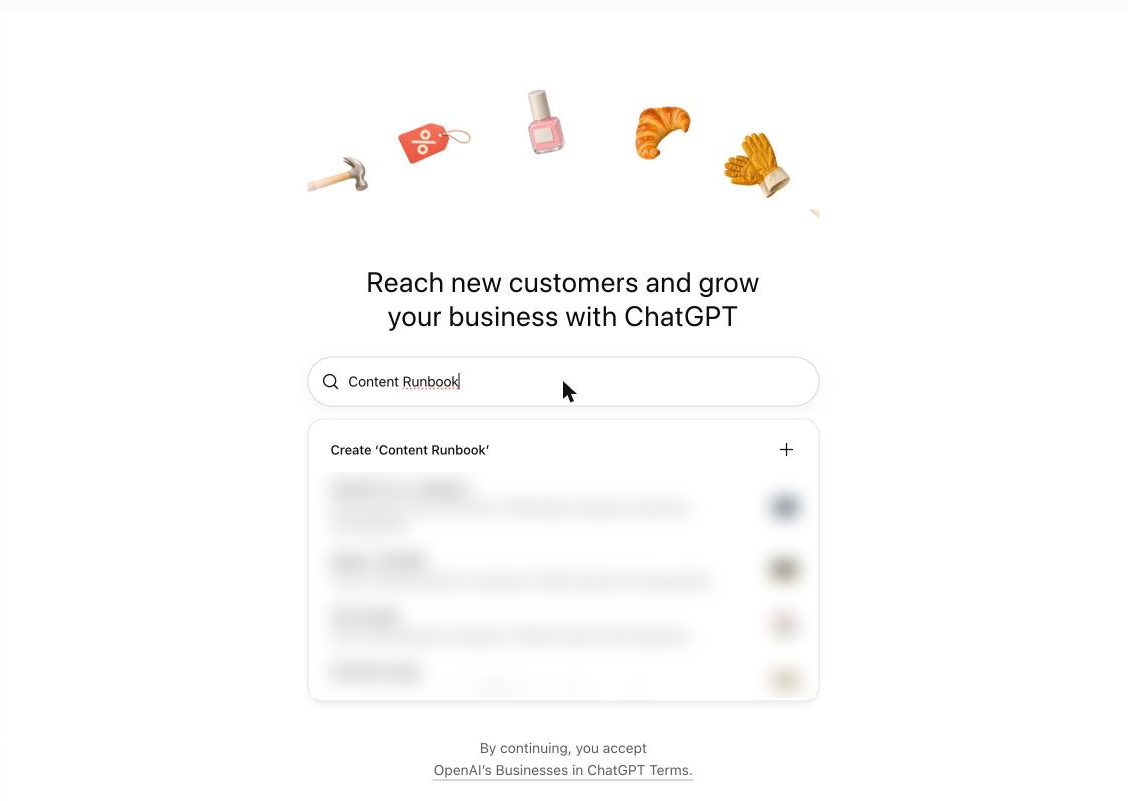
Sign in to ChatGPT, open Business Hub from the sidebar, and type your business name in the search box. If Business Hub isn’t in your sidebar, go to chatgpt.com/business-hub directly. If ChatGPT already has a listing for you, it appears in the results with its address or website.
Our site is new, so there was no listing. ChatGPT suggested nearby local businesses and offered “Create ‘Content Runbook’” at the top of the list.
Step 2: Claim your listing or create a new one
Select your listing and confirm the ChatGPT account you’ll manage it from. If there’s no listing, select Create and then Get started.
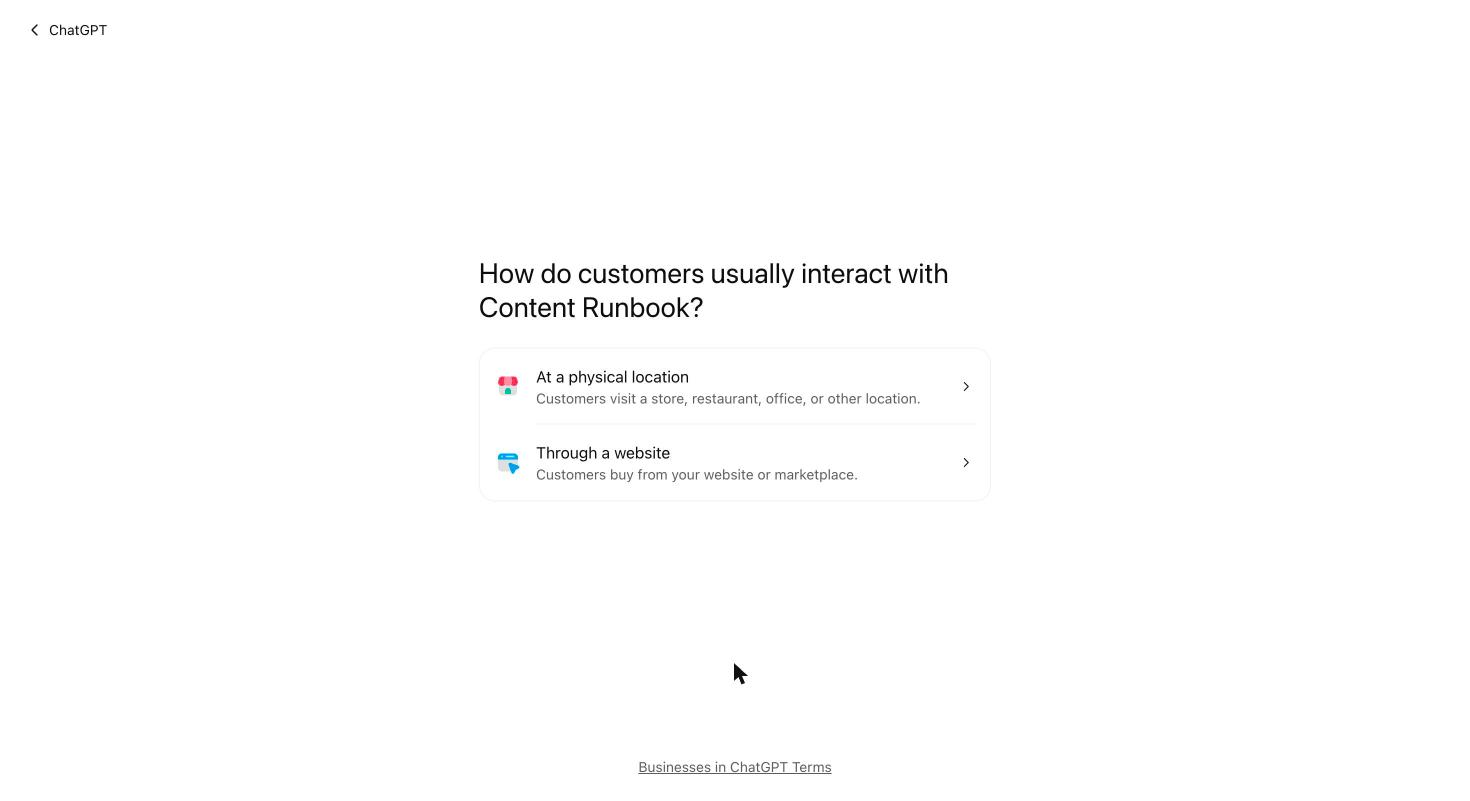
ChatGPT then asks how customers usually interact with your business: at a physical location, or through a website. We picked “Through a website” and entered our site’s address.
Use a ChatGPT account you’ll keep. The person who claims the business becomes its admin and adds everyone else later.
Step 3: Verify that the business is yours
Choose one of the verification methods ChatGPT offers for your listing and follow its prompts. The methods vary by listing:
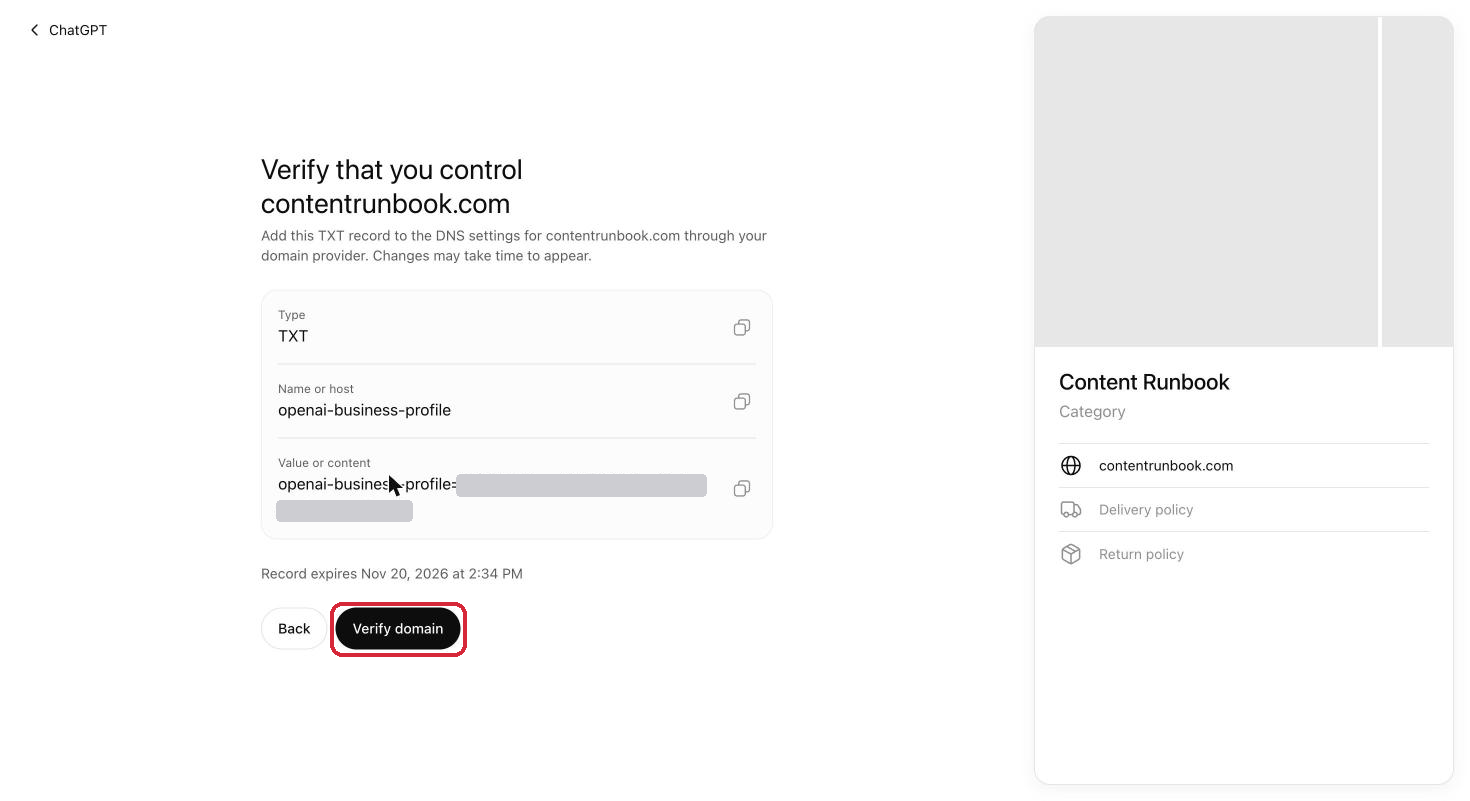
- Website domain: add a TXT record to your domain’s DNS.
- Business phone: get a code by text message or an automated call.
- Business email: get a code at the email address on the listing.
- Shopify store: sign in to the store and approve the connection.
Our new site was offered the DNS option. ChatGPT showed us a TXT record with three parts: the type (TXT), the name (openai-business-profile) and a long value. It also said the record expires 24 hours after it’s issued, so add it the same day.
To add the record in Cloudflare:
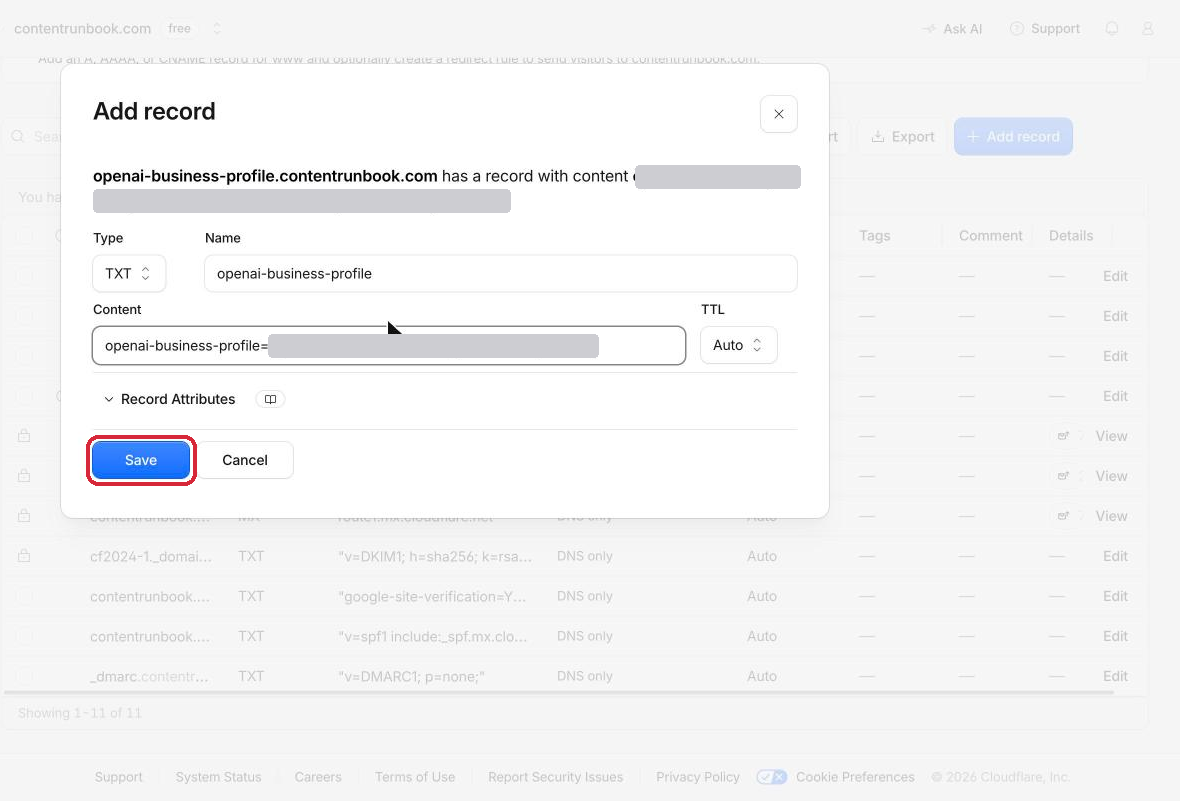
- Open your domain, then DNS, then Records, and select Add record.
- Set the type to TXT.
- Paste openai-business-profile into Name. Cloudflare adds your domain itself.
- Paste the full value into Content, keep TTL on Auto, and save.
Other DNS hosts work the same way. If someone else manages your domain, send them the three parts exactly as shown.
Back in ChatGPT, select Verify domain. Ours passed about 2 minutes after the record was issued, and ChatGPT moved straight to the profile details.
Step 4: Add your category, description and policies
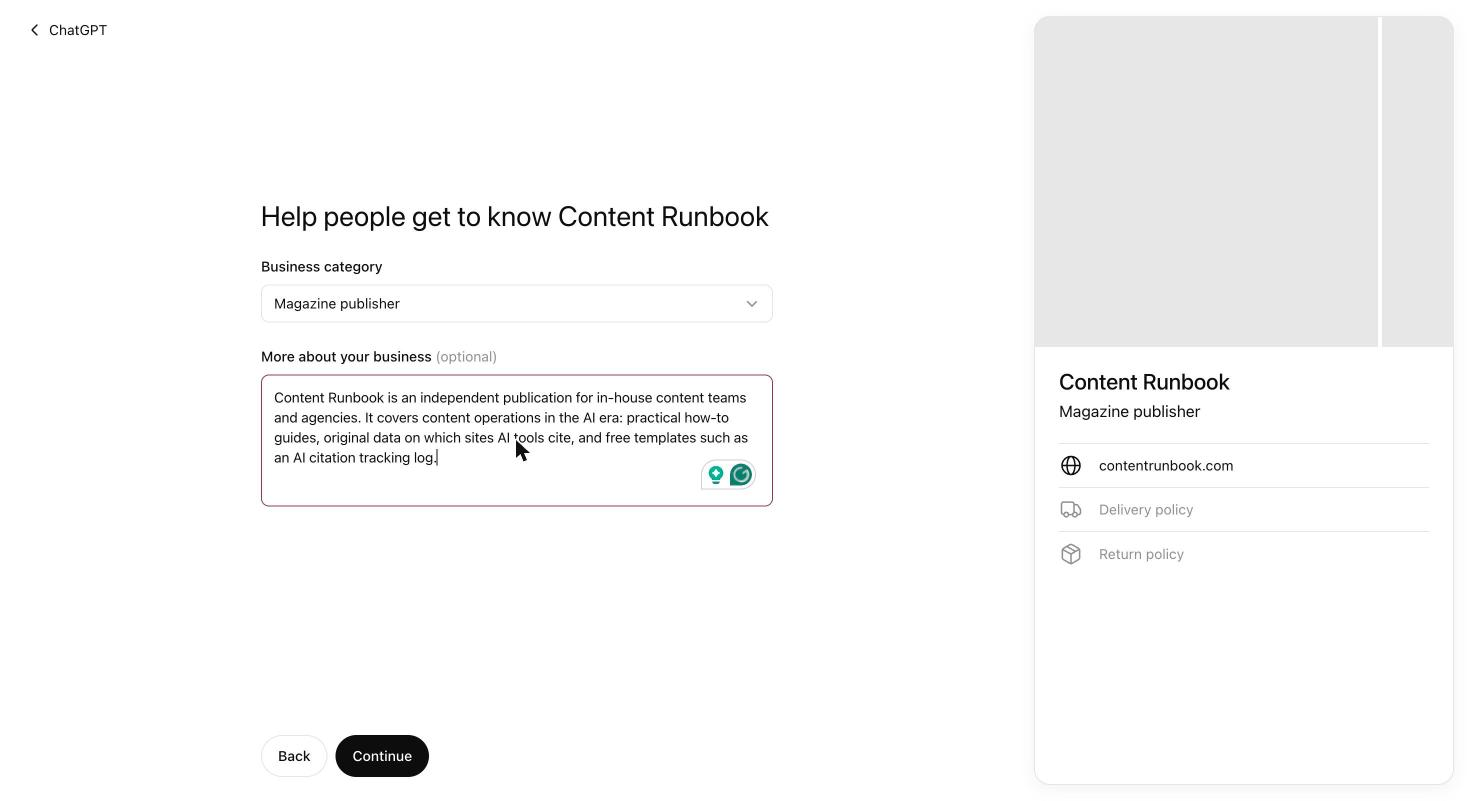
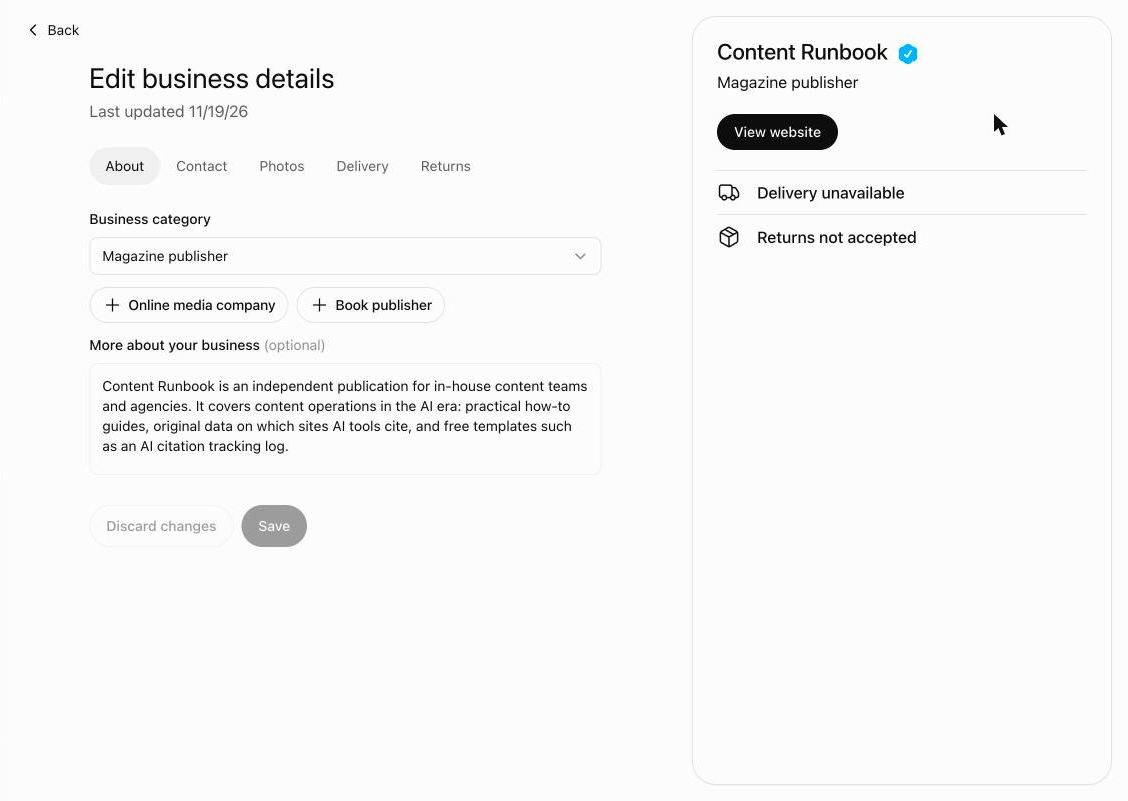
Pick a business category, write a short description, and answer the contact and policy questions. A preview of your profile card updates on the right as you fill them in.
The category list covers publishers too. We chose “Magazine publisher” and wrote a 39-word description of who the site is for and what it publishes.
Phone and email are optional. We left them blank, because the profile is public and we had no shared address to give.
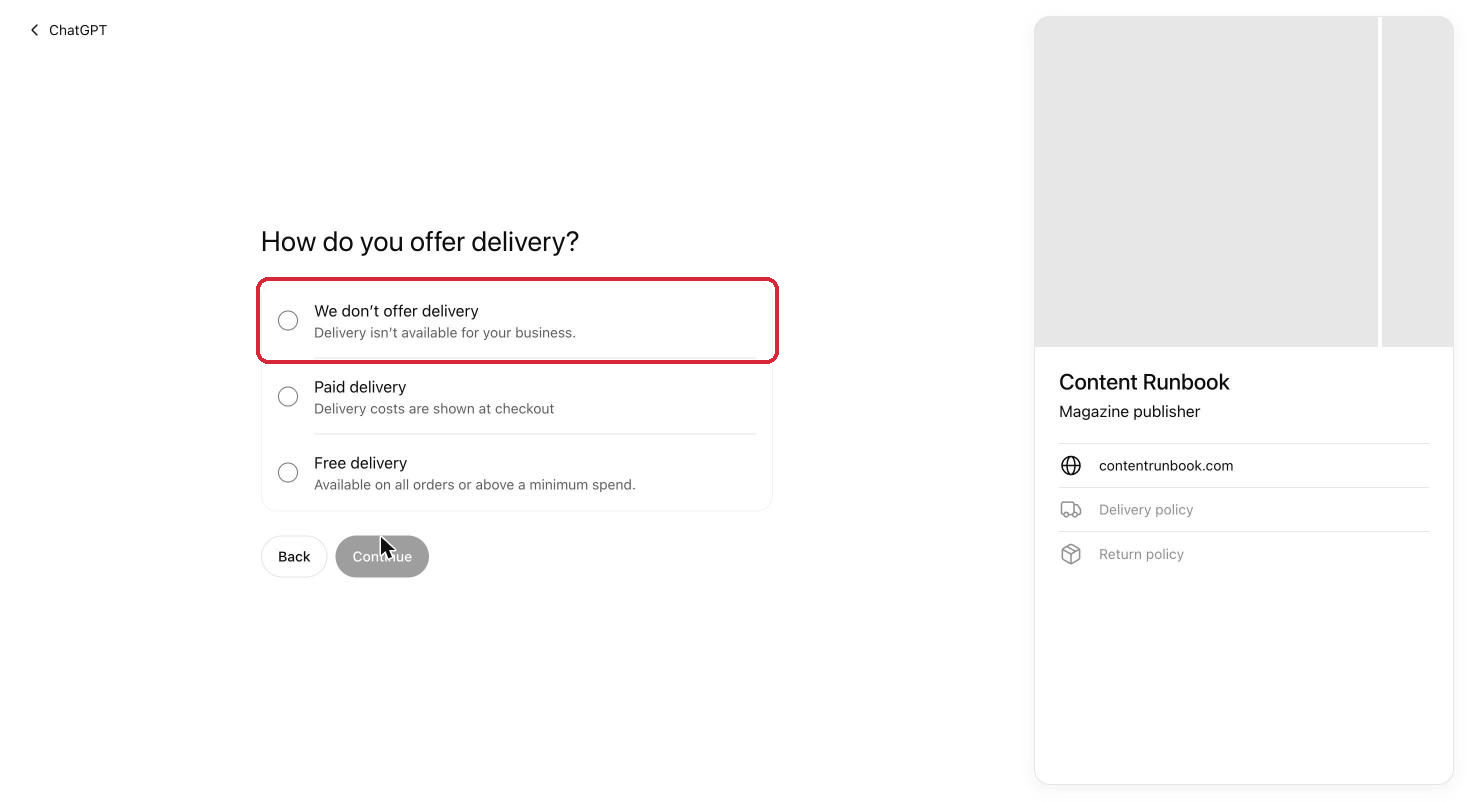
The next two questions are written for shops: how you offer delivery, and what your return policy is. If you sell nothing physical, pick “We don’t offer delivery” and “Returns not accepted”. Those show on the card as “Delivery unavailable” and “Returns not accepted”, which is accurate for a website that sells nothing.
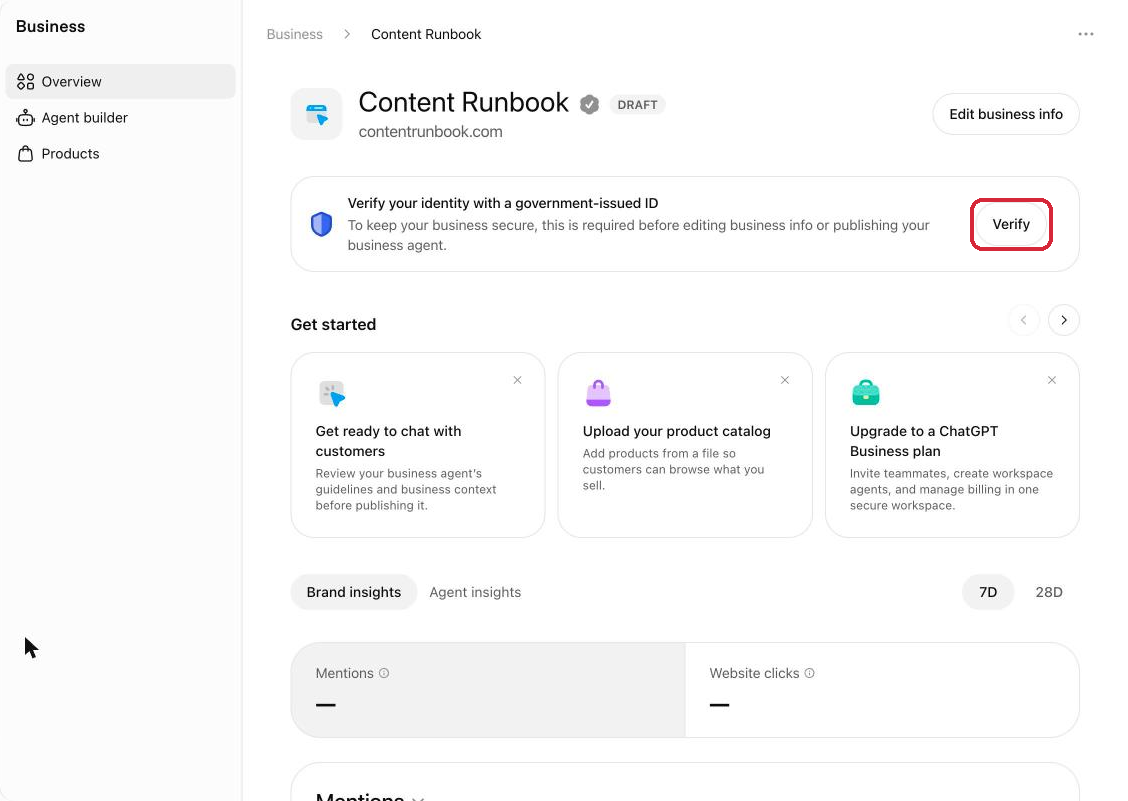
After Submit, ChatGPT saves the profile as a draft. The Persona ID check comes next, from the business overview.
Step 5: Verify your identity with Persona
Select Verify on the “Verify your identity with a government-issued ID” card in your business overview, and follow the Persona prompts. Until Persona approves you, you can’t edit your profile, see insights, connect a product feed or create an agent.
The two checks prove different things. Step 3 proves you control the business’s website, phone or email. Persona proves who you are and that you may represent the business.
Persona asked us for three things:
- A photo of a government ID.
- A selfie, matched against the ID.
- A photo of proof that the business is registered.
The Persona ID check took about a minute. The legal name, registered address and any registration or tax number you enter should match your official records. If a separate trade-name field is offered, use it for the name customers know.
The registered business didn’t have to match the website’s name.
Check everything before you submit. For a new profile, OpenAI’s approval publishes it straight away, and a published profile can’t be deleted. Only drafts can.
Step 6: Wait for approval and check your profile
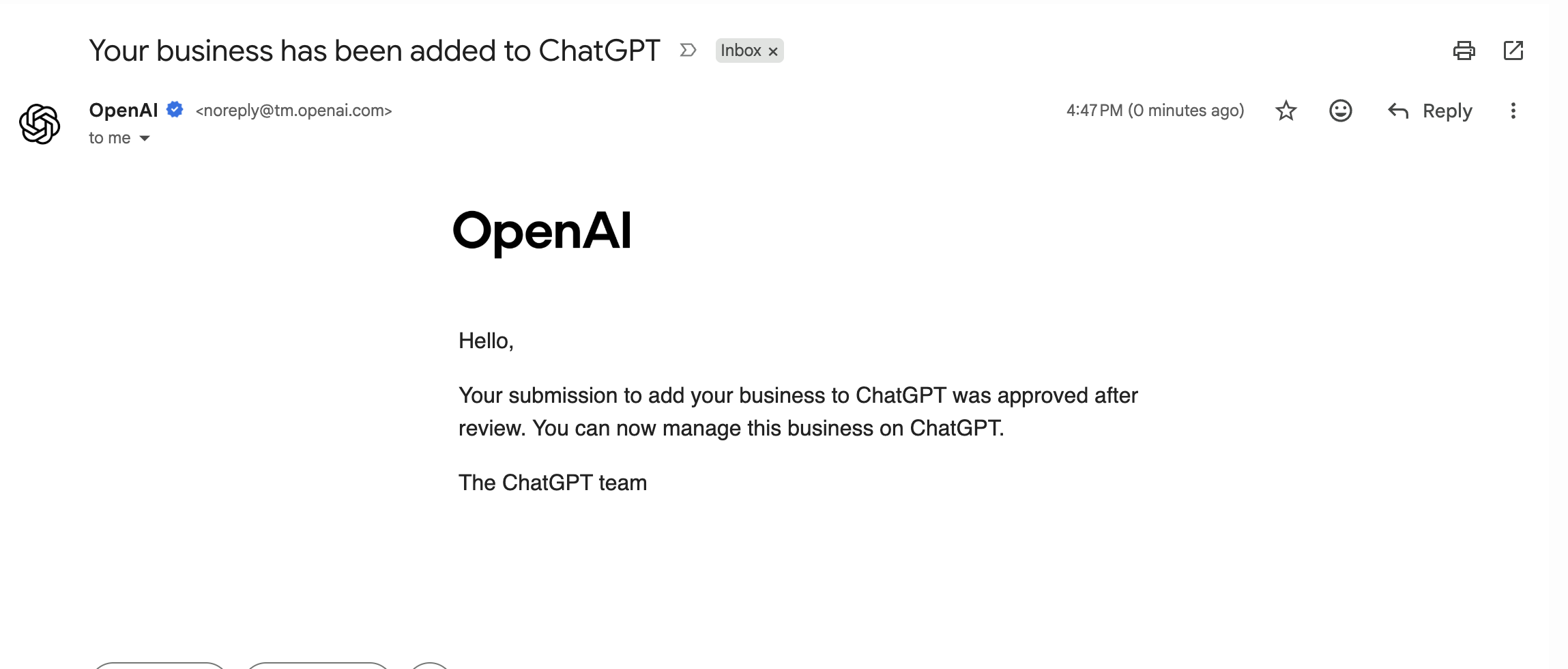
OpenAI reviews the Persona ID check and emails its decision. The confirmation screen said status updates could take a few days. Our approval email arrived about a minute later.
After approval, the Draft label disappears from your business overview and the profile gets a blue check. Open Edit business info to see the public card.
Ours shows the name with the blue check, the category, a View website button, and the delivery and return answers. The legal name and address from the Persona ID check don’t appear on it.
What if verification is pending, fails or someone already claimed it?
Most problems have a fix in the business overview or the email OpenAI sends:
- The DNS check fails: compare the record in your DNS with the one ChatGPT shows, character by character, then try Verify domain again. DNS changes can take a while to spread.
- You can’t receive the code: pick another method on the listing. Domain verification works without changing your public phone number.
- The Persona ID check is pending: wait for OpenAI’s email. You can cancel the submission while it’s under review.
- The Persona ID check failed or expired: follow the email. If Try again is offered, resubmit with a name, address and registration number that match your official records.
- The listing says Contact support: it’s locked. Select Contact support to ask OpenAI for access.
- Someone else already claimed it: open the profile, select the three-dot menu, then Dispute ownership, and verify with Persona.
What do you agree to when you claim?
You agree to the Businesses in ChatGPT Terms, last updated November 18, 2026. Four points matter most for a small business:
- The listing exists either way. OpenAI can create and show a listing for your business whether or not you claim it, and can add to, edit or replace what you submit (section 4.1).
- Basic details stay licensed. The license to display your name, address, contact details (the phone number and email you add in your profile’s Contact tab; leave both blank if you don’t want them public), category, hours and website is permanent and can’t be withdrawn (section 4.2). The ID and registration documents from the Persona ID check aren’t shown on the profile.
- ChatGPT may call you. OpenAI’s assistant may phone your business on behalf of its users, unless you opt out (section 4.1).
- Product feeds come with crawler access. If you submit a feed, you let OpenAI’s crawlers into your sites, and any text-and-data-mining opt-out stops applying to OpenAI (section 3).
You keep your rights in what you submit (section 2.1). This is a summary, not legal advice: read the terms yourself before claiming a client’s business.
Does claiming your business get you cited in ChatGPT?
No, claiming your business doesn’t get you cited in ChatGPT more often. OpenAI says claiming a profile doesn’t change its visibility in ChatGPT, and that ChatGPT may use other sources when answering questions about your business.
Which pages ChatGPT cites depends on whether it searches the web and what it finds there. In our AI search citation study in November 2026, ChatGPT searched in about 60% of answers and never searched for 8 of our 25 questions. When it does search, the page it finds has to answer the question better than the others, which is what LLM SEO and generative engine optimization (GEO) work on.
What doesn’t Business Hub show you?
Business Hub shows only part of your presence in ChatGPT, and nothing outside it:
- Brand names without a link. For an online business, an answer that names your brand without referencing your website isn’t counted as a mention.
- The questions. Discovery topics are themes. Businesses never see the prompts people typed or their conversations.
- Small numbers. Below OpenAI’s reporting threshold a metric stays blank, and blank doesn’t mean zero.
- Other AI tools. Gemini, Perplexity and Google’s AI Overviews aren’t included.
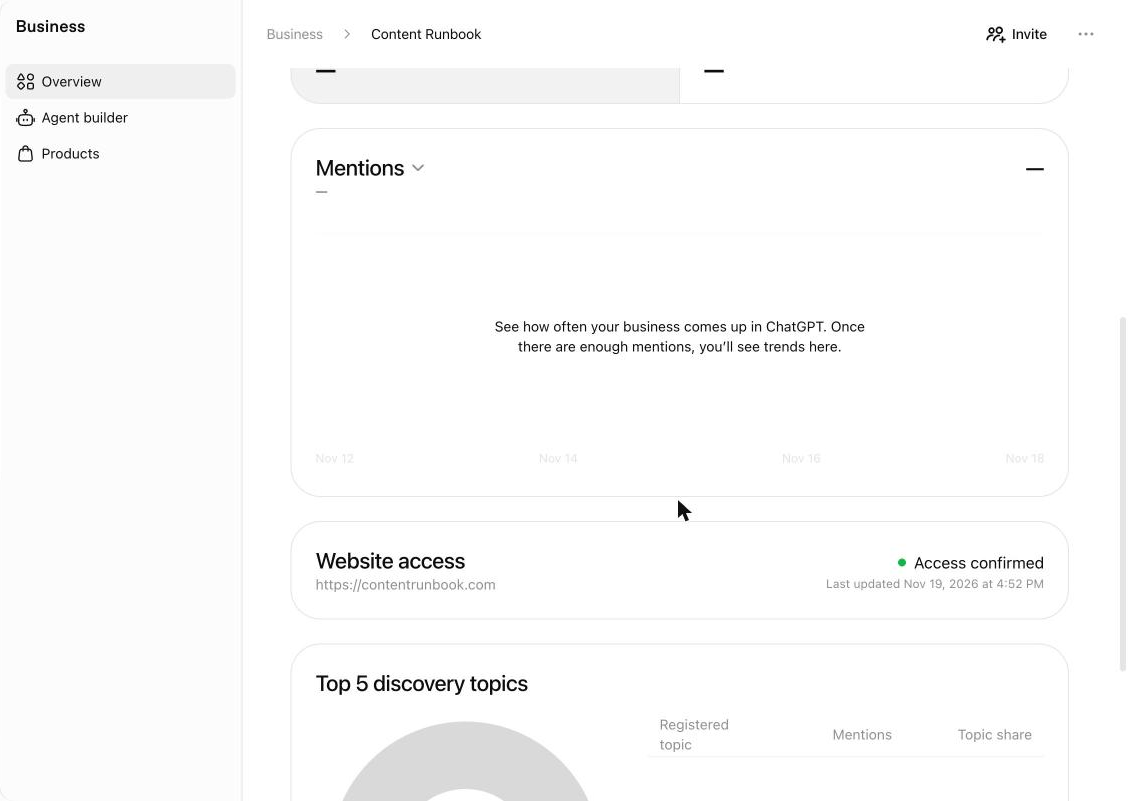
To see which answers name you, which cite a competitor instead, and how other AI tools treat you, ask the questions yourself and log the results. Our guide on how to track AI citations sets that up with a free template.
Can an agency or teammates manage a Business Hub profile?
Yes, an agency or teammates can manage a Business Hub profile once the admin invites them. The admin is whoever claimed the business. They can add teammates and give an agency access to the profile or its agent, and each person signs in with their own ChatGPT account.
For client work, let the client claim the business and invite your agency, rather than claiming it in your own account. Don’t forward a personal claim invitation to someone else. One admin can manage several profiles, but each brand has its own profile, and there’s no parent profile that manages them all.
Is Business Hub the same as ChatGPT Business?
No, Business Hub isn’t the same as ChatGPT Business. Business Hub manages how your business appears in ChatGPT.
ChatGPT Business is a paid workspace plan for teams. You don’t need it, an Ads account or an Enterprise agreement to claim your business.
How is ChatGPT Business Hub different from Google Business Profile?
ChatGPT Business Hub lets an online-only business create a listing and verify it through its domain. Local stores can claim only existing US listings for now.
The reports differ too. Business Hub counts how often ChatGPT answers referenced your website and how many people clicked through. Google Business Profile shows views, clicks and other interactions with your profile on Google Search and Maps, plus the searches it appeared for.